

RSI Association
The RSI and Overuse Injury Association of the ACT provides information and support to those experiencing RSI.
Dragon speech recognition software
Purchase of Dragon software
Training
Viva Voce Speech Recognition Solutions provides training in the use of Dragon speech recognition software.
Wherever you are located, Viva Voce can deliver online training. Face to face training is available in the Canberra and ACT region.
Ergonomic Office
Ergonomic Office has a wide range of ergonomic mice, keyboards and other equipment. Note that ClickAway clickless software can be used with any kind of mouse (though we recommend using an external mouse rather than a laptop touch pad, for smoother mouse movements).
Microsoft Windows accessibility settings
Microsoft Windows has a number of accessibility settings in Settings > Ease of access:
Mouse settings: ‘Snap to’
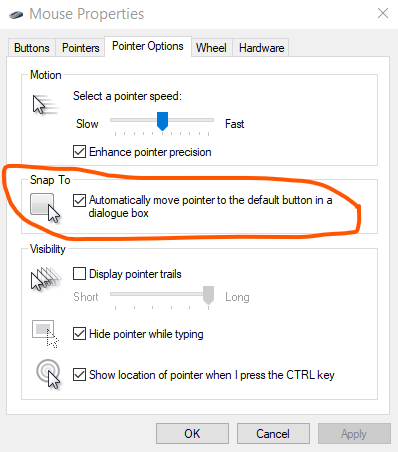
After enabling the ‘Snap to’” option in mouse settings, the mouse pointer will automatically move to the default button in a dialogue box. This will help to reduce mouse movements.
How to enable ‘Snap to’
In the Windows search field (Windows key+S) type ‘Ease of access mouse settings’ > Mouse pointer > Additional mouse settings > Additional mouse options > Pointer Options > Snap to.
Check ‘Automatically move the mouse pointer to the default button in the dialogue box’ to reduce mouse movements, by allowing windows to automatically move the mouse pointer to the default button in a dialogue box.
Keyboard settings: ‘Sticky keys’
Sticky keys is a Microsoft accessibility feature that gives you the option of pressing keyboard shortcuts one key at a time, instead of together. This allows you to keep your fingers and hands more relaxed.
How to enable ‘Sticky keys’
In the Windows search field (Windows key+S) type ‘Sticky keys’ and adjust settings as below.
